.webp?width=100&height=43&name=gohappy-logo-full-green-2%20(1).webp)
You can send a message in just a few steps! Or check out the best practices video below to see how you can personalize your messages and keep them engaging.
📝 Creating a Message
1. Choose Your Audience
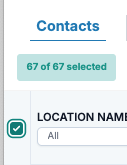
First, click the "Messaging" navigation header. Then select the contact group you want to message. Use the checkboxes to choose one or multiple recipients.
✅ Tip: You can message an entire group or just a few specific people. Below you can see the "Select All" checkbox, allowing you to select all contacts that you have access to. For Managers, this may be employees in your location or department and for goHappy Admins this would be ALL employees.
2. Click “Compose Message”
After your audience is selected, click Compose Message to open the message editor.
3. Write Your Message
Type the message you’d like to send in the message box. Check out the video below for personalization options, AI assistance, and more.
4. Click "Continue"(if available)
Some of our clients use our preferred language feature that translates texts into the recipient's preferred language. So you will need to click Continue to have your message translated, and then you can click "Send Now".

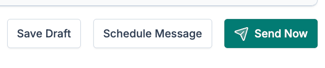
5. Click "Send Now"
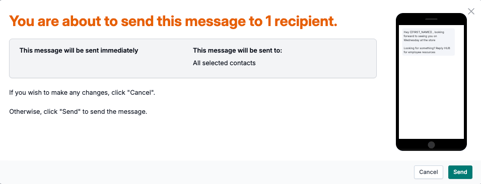
Once everything looks good, click Send Now to deliver your message. After clicking Send Now a final modal will appear, asking you to confirm you want to send the message.
Frequently Asked Questions
-
Can I save a message as a draft if I'm not ready to send it? Yes, and the steps are outlined here. If you choose to save a draft message, then you will find it in the Outbox->Drafts section when you are ready to update or send the message.
- What is the employee experience if I attach a pdf or file to a text? When you attach a PDF or other file, employees receive a short URL in the text message. Tapping it opens the file in their mobile browser — no app or login required.
- Can I edit a scheduled message after scheduling it? Yes. Scheduled messages appear in your Outbox and can be edited or cancelled before the send time.
Messaging Best Practices
Duration: 3 minutes