.webp?width=100&height=43&name=gohappy-logo-full-green-2%20(1).webp)
Prerequisites
Before you begin, make sure you have:
- Admin access to your goHappy account
- Business information ready (company name, tax ID, address)
Overview
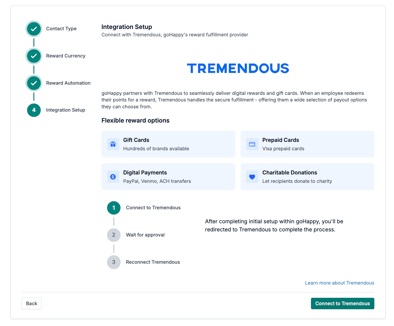
Tremendous is goHappy's reward fulfillment partner, offering employees a wide selection of payout options including:
- Gift Cards - Hundreds of brands available
- Prepaid Cards - Visa prepaid cards
- Digital Payments - PayPal, Venmo, ACH transfers
- Charitable Donations - Let recipients donate to charity
Setup Process
Step 1: Contact Type
Select which group of employees will be eligible to receive Rewards points.
Step 2: Reward Currency
Step 3: Reward Automation(Optional)
Step 4: Initiate Connection from goHappy to Tremendous
- Review the Tremendous integration information
- Click Connect to Tremendous at the bottom of the page
Step 5: Check Your Email
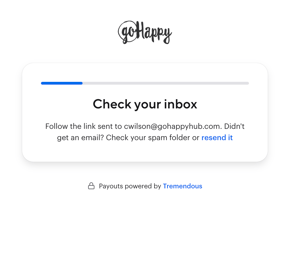
- You'll see an overview screen, click Get started
- Input your email address
- Look for an email in your inbox to verify your identity
- If you don't see the email, check your spam folder or click resend it
- Click the link in the email to continue setup

Step 6: Authorize goHappy
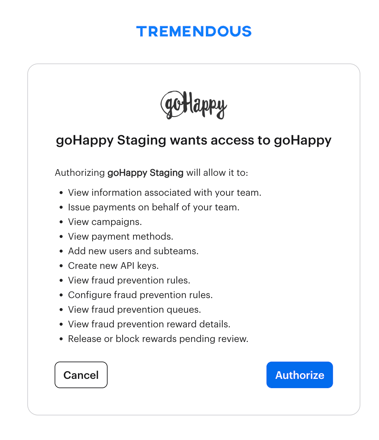
- You'll be redirected to Tremendous where you'll see an authorization request
- Review the permissions goHappy needs:
- Click Authorize to grant permissions for goHappy to use your Tremendous account
Step 7: Create Your Tremendous Account
Business Information (Part 1)
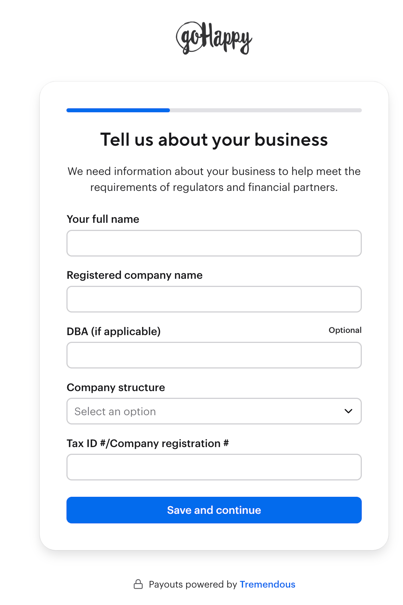
Complete the business information form with:
- Your full name
- Registered company name
- DBA (if applicable) - Optional
- Company structure (select from dropdown)
- Tax ID # or Company registration #
Click Save and continue
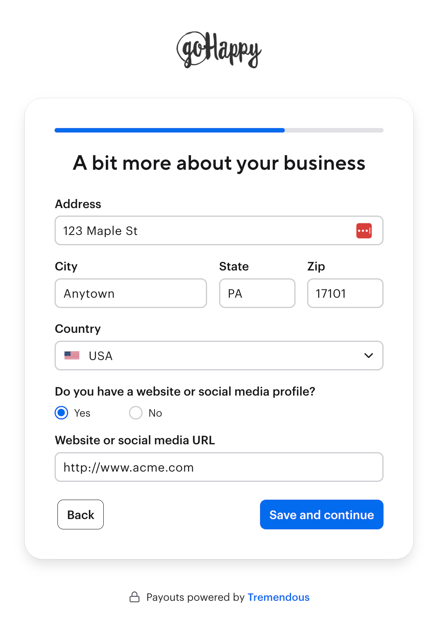
Business Information (Part 2)
Provide your business address details:
- Street address
- City
- State
- Zip code
- Country
Indicate if you have a website or social media profile:
- Select Yes or No
- If Yes, enter your website or social media URL
Click Save and continue
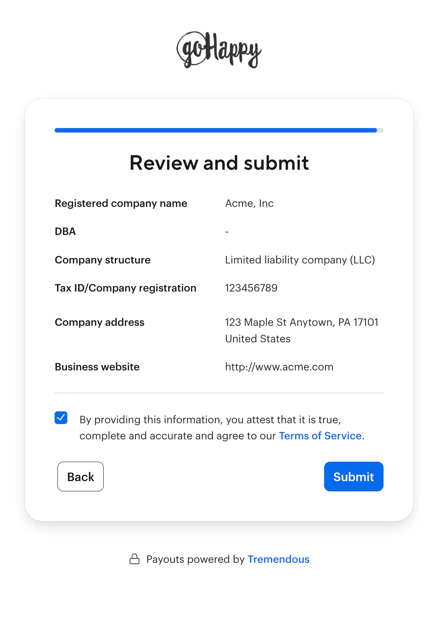
Review the information and click Submit
Step 8: Fund Your Account
After completing business verification, you'll need to fund your Tremendous account before sending rewards. Follow the prompts to add funds to your account.
Step 9: Wait for Approval
Tremendous will review your account information. This typically takes one business day. You'll receive an email notification once your account is approved.
Step 10: Complete Setup
Once approved, return to your goHappy dashboard. You may need to reconnect Tremendous to finalize the integration.
What's Next?
After setup is complete, you can:
- Configure automated reward triggers
- Set point values and redemption options
- Start recognizing employees with rewards
- View reward analytics and payout reports