.webp?width=100&height=43&name=gohappy-logo-full-green-2%20(1).webp)
To get started,
Hover over the Messaging header and then select Triggers from the menu. On the next page, select "New Trigger".
Select a Contact Type, this is typically your active employees contact group, but other groups can benefit from triggers too.
Fill out the required fields, like Name, choose a category for the Trigger, how often it should run and when it should start.
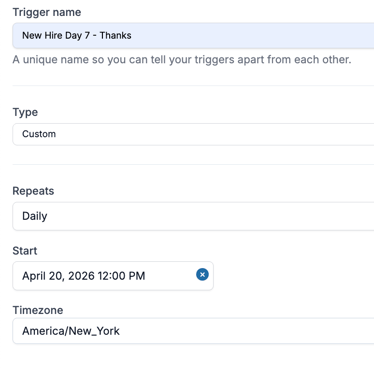
In this example, we'll be sending out a trigger one week after someone's hire date.
Trigger Criteria
Using AI to set criteria for you:
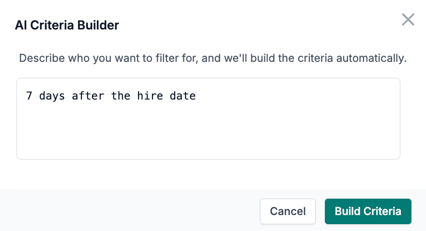
Click the AI Criteria Builder button and enter the logic you want the builder to follow, like "7 days after hire date"
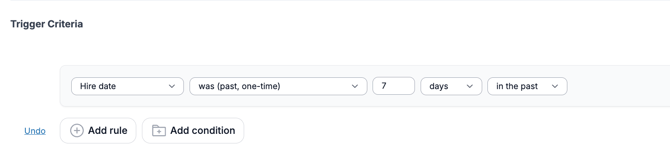
When setting the criteria manually, the first drop down are the fields from your HRIS or Payroll file that is imported into goHappy. So you will be using the fields that are sent to goHappy. In this example select Hire Date.
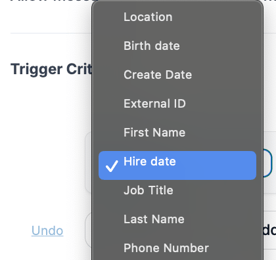
Then the second column is the logic that will be used on the hire date comparison. It will compare the hire date to the current date and run one time.
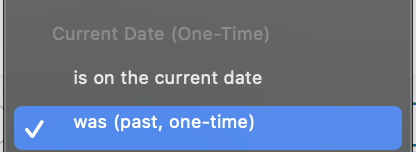
Then choose 7 days in the past, because the hire date will be 7 days in the past from when this trigger will be sent.
Now, just update your trigger message and click "Save Trigger" at the bottom of the page. Once it's saved you will stil need to "Enable" the trigger, so that it runs. New triggers are set to disabled by default.
After saving, click "Edit Trigger" and then "Enable Trigger"
For more Trigger ideas check out ideas for a new hire onboarding flow