.webp?width=100&height=43&name=gohappy-logo-full-green-2%20(1).webp)
Keywords save HR teams hours of repetitive answering and gives frontline employees 24/7 access to the information they need, right from their phones.
Admin Users can create, update, and remove Keywords. To get started hover over the Messaging navigation and then select Keywords from the menu.
If keywords have been created before, you will immediately see a list of the keywords and some data specific to each one.
Start by clicking Create new Keyword
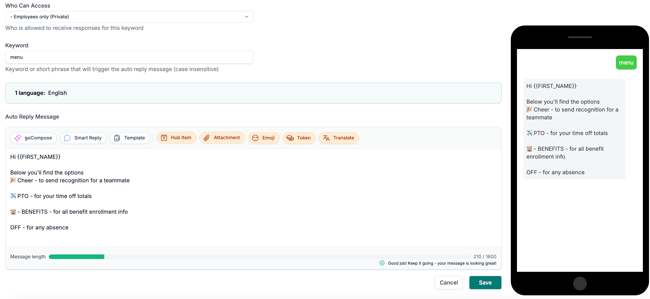
Who can access the keyword?
Most often you will choose your Employee contact group, so only these contacts can interact with this keyword. If you have other use cases you can choose other contact groups, like Family members of residents in senior living.
You can also choose for a keyword to be public, so anyone could text the keyword code to your goHappy number.

Choose the keyword
This is the keyword code that will be used to receive the auto-repsonse. Best practice is to use one word and keep it short if possible.

Write your message
The message that is written will be the auto reply to employees. Is your message about benefits? Contacting Payroll? Updating info in the HRIS system?
Make sure to include helpful info like links, images, corporate email addresses, so your employees have a clearly defined next step.
Best Practices
-
If you add a new keyword, you will need to update your Menu keyword with the new information. The menu keyword does not update automatically.
- Contacts don't know about keywords unless they are told. Adding the footer about MENU to messages does help.
- Setup a quarterly trigger to remind employees about your keywords, so any new employees also know about this helpful tool.