.webp?width=100&height=43&name=gohappy-logo-full-green-2%20(1).webp)
🔐 Important: This functionality is only available to Account Admins. You can follow the step by step instructions or watch a quick training.
🚀 What Is a Trigger?
A Trigger is an automated message that sends on a schedule you define—daily, weekly, monthly, or custom—based on rules you set using employee data from your HRIS file.
🧭 Step 1: Navigate to Triggers
-
Hover over or click Messaging in the top navigation.
-
Select Triggers.
-
Click New Trigger.
⚙️ Step 2: Configure Your Trigger Settings
Follow these steps to set up when and to whom your message will send:
1. Select the Contact Type
-
This determines who will receive the message.
-
✅ In most cases you will select your Employees.
2. Name Your Trigger
-
Give it a clear, internal name (example: Weekly Friday Reminder).
3. Select a Trigger Type
-
Choose the trigger type that best fits your automation needs.
4. Choose a Start Date
-
This is the first day the message will run.
5. Select How Often the Trigger Runs
-
Options include daily, weekly, monthly, etc.
-
🛠️ Choose Custom if you need more granular control (specific days, intervals, etc.).
6. Set an End Date (Optional)
-
Most triggers are “set it and forget it.”
-
Add an end date only if the message should stop automatically in the future.
🧩 Step 3: Build Your Audience (Trigger Criteria)
Use Trigger Criteria to control exactly who receives the message by filtering with HRIS fields.
Examples:
-
🎓 Specific job titles
-
📍 Specific locations
-
🧑💼 Leaders only
How to set criteria:
Using AI to set criteria for you:
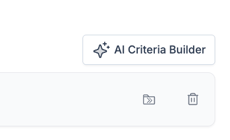
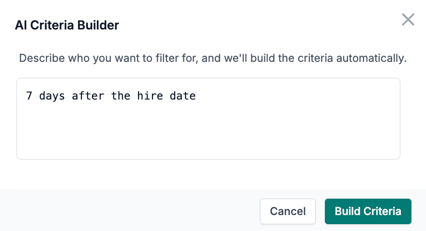
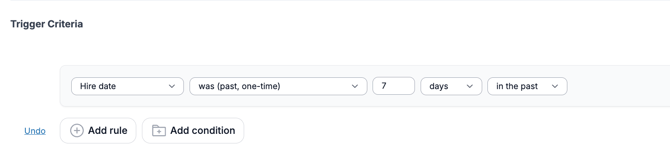
Click the AI Criteria Builder button and enter the logic you want the builder to follow, like "7 days after hire date" and then click "Build Criteria".
When setting criteria manually:
-
In the first dropdown, select the HRIS field you want to filter by (e.g., Job Title).
-
Leave “is any of” selected if choosing one or more values.
-
In the final dropdown, select the specific values that match your audience.
👉 Example:
If you only want the message sent to Store Managers, select Job Title → is any of → Store Manager.

✍️ Step 4: Write Your Message
Now the fun part 🎉
-
Write your message as you normally would.
-
Add emojis, images, and formatting to match your tone.
-
When ready, click Save Trigger.
🔌 Step 5: Enable Your Trigger
🚨 By default, all new triggers save as DISABLED.
To activate:
-
Click Edit Trigger.
-
Select Enable Trigger.
✅ That’s it! Your automated message is now live and will send based on your schedule and criteria.
Check out the video below for a walkthrough(3 min)

If you have any questions or run into issue, send us an email so we can help: support@gohappyhub.com