.webp?width=100&height=43&name=gohappy-logo-full-green-2%20(1).webp)
There are two flavors when sending a message on a schedule: contacts you have available today or use criteria so your recipient list auto updates.
📝 Creating a Message
1. Choose Your Audience
First, click the "Messaging" navigation header. Then select the contact group you want to message. Use the checkboxes to choose one or multiple recipients.
Select either contacts you have available today or choose Criteria so your message recipients auto update based on criteria.
✅ Tip: Criteria-based sends are best for future messages since they always target the most up-to-date set of contacts based on your data. Your message will always go to everyone who matches your criteria, including any new hires added before it’s sent. Here's a deeper dive on Criteria based messages.
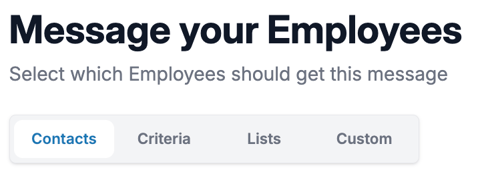
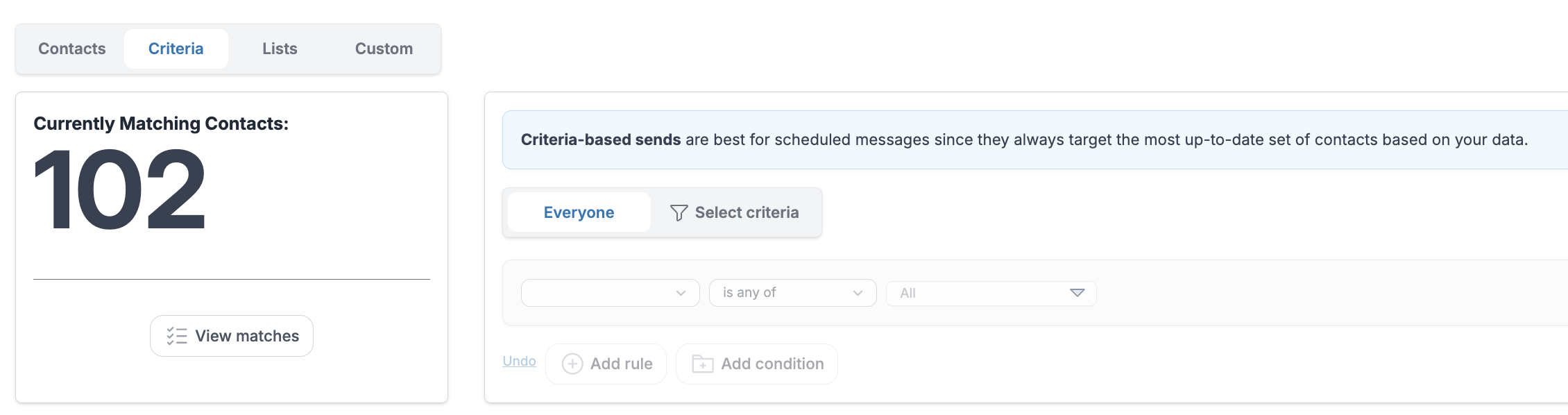
Selecting "Criteria" auto selects all of your contacts as a recipient. The biggest use case is a message to the whole company or to all of a manager's direct reports.
2. Click “Compose Message”
After your audience is selected, click Compose Message to open the message editor.
3. Write Your Message
Type the message you’d like to send in the message box. Check out the video below for personalization options, AI assistance, and more.
4. Click "Translate"(if available)
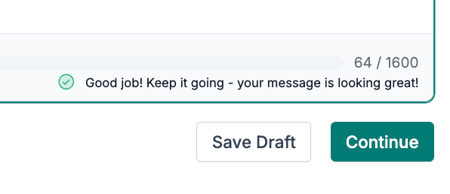
Some of our clients use our preferred language features that translates texts into the recipient's preferred language. So you will need to click Continue to have your message translated and then you can click "Schedule Message".
5. Click "Schedule Message"
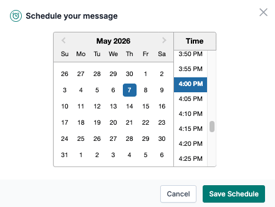
Once everything looks good, click Schedule Message. A calendar modal will appear, asking you to select a date and time(based on your timezone). Once the date and time are picked, click Save Schedule.
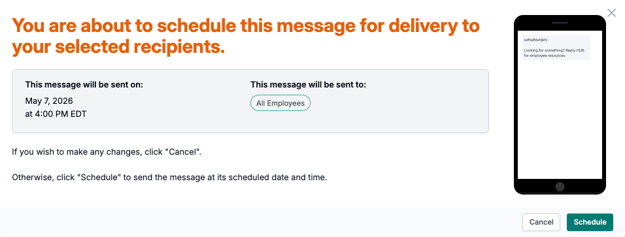
A final confirmation modal will appear. Click Schedule to confirm.