.webp?width=100&height=43&name=gohappy-logo-full-green-2%20(1).webp)
Survey Setup Review gives you a complete, read-only summary of your entire survey configuration — audience, schedule, questions, messages, and access settings — all on one page. It's the best way to catch any mistakes before launching and to share your setup with colleagues for a second opinion.
Where to Find It
- Open the survey you want to review
- Click the Survey Tools dropdown at the top of the page
- Select Survey Setup Review
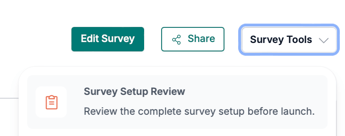
The review page will open showing a full summary of your survey's current configuration.
* Available for both Admin and Manager Users.
Share your selections with others
At the top of the Survey Setup Review page you'll be able to export the settings to a PDF or grab a link to share with a colleage.
What the Survey Setup Review Shows
Audience
Shows who will receive this survey.
- Total matching employees — the exact number of contacts who meet the survey's audience criteria
- View all contacts — click to see the full list of recipients
- Audience criteria — the filters applied to define the audience (e.g., location, job title, department). If no criteria are set, it will show "No audience criteria defined" meaning the survey goes to all contacts in the selected group.
Schedule
Shows when the survey opens and closes.
- Start date and time — when the survey launches and the first message goes out
- End date and time — when the survey closes and stops accepting responses
- Total days open — the total number of days the survey will be active
Questions
Shows every question included in the survey.
- Lists each question in order with its question number and full text
- Shows the question type for each (e.g., text, rating, upload)
- Displays the total number of questions and categories
Use this section to confirm the questions are correct, in the right order, and using the right question types before the survey goes live.
Messages
Shows all messages configured for this survey and when they are scheduled to send.
| Message Type | What It Does |
|---|---|
| Launch message | Sent to all recipients when the survey opens — includes the survey link |
| Reminder 1, 2, etc. | Follow-up messages sent to employees who haven't responded yet |
Each message shows its scheduled date and time and its current status (e.g., Scheduled, Sent).
💡 Tip: Review your message schedule to make sure reminders are spaced appropriately
Manager Access
Shows which user roles have been granted access to view survey results, and when.
| Column | What It Shows |
|---|---|
| Role | The user role (Super Manager, Manager) |
| # of People | How many users in your account have that role |
| Survey Results Open | The date when that role gains access to view results (if set) |
| Access | Whether that role can view survey results (Yes/No) |
| Comment Access | Whether that role can view individual comments (Yes/No) |
Use this section to confirm the right people will have access to results — and that anyone who shouldn't have access is excluded.
When to Use Survey Setup Review
- Before launching any survey — especially engagement surveys where the audience, schedule, and questions need to be exactly right
- When sharing with a colleague for review — they will need a goHappy login to see the page
- As a record of your survey configuration — export as a PDF to document what was sent and to whom
Frequently Asked Questions
Can I edit the survey from the Setup Review page? No — the Setup Review is read-only. To make changes, go back to the survey and click Edit Survey.