.webp?width=100&height=43&name=gohappy-logo-full-green-2%20(1).webp)
If you need to message a specific group of employees and don't want to tediously click through finding each person one by one, the Custom tab is built for you
Common examples:
- Employees that have not yet completed benefits/open enrollment
- Conference attendees
- Employees with expiring certifications
- Any group that exists in a spreadsheet or external report but doesn't share a common goHappy filter
These groups exist in your HR system, your spreadsheets, your enrollment reports — but they don't map to a single location, job title, or department in goHappy. Clicking through hundreds of checkboxes to find each person one by one isn't realistic.
The Custom tab solves this. Paste in your list — names, IDs, phone numbers, or emails — and goHappy matches them to your contacts. You see who matched, who didn't, and you're sending a message in seconds.
Where to Find It
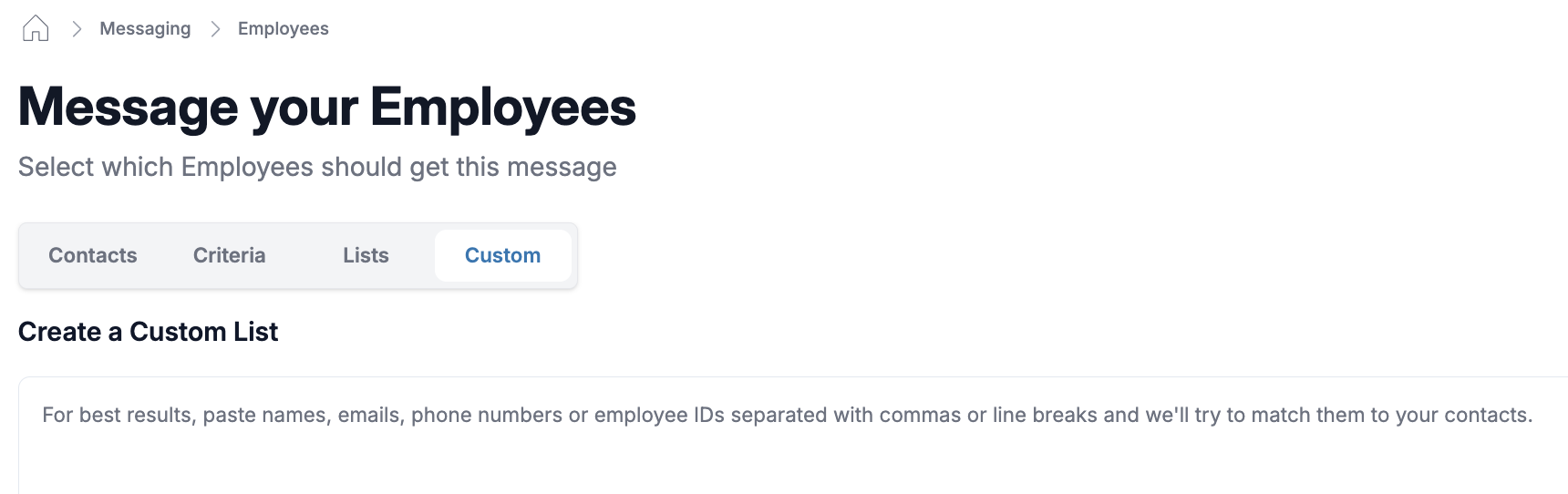
The Custom tab appears where you select contacts — when composing a message, you'll see four tabs at the top of the contact selection screen:
Contacts · Criteria · Lists · Custom
Click Custom to get started.
How to Build Your List
- Click the Custom tab
- In the text box, paste your list of employees — you can use any of the following:
- Names
- Employee IDs
- Phone Numbers
- Email addresses
- Separate each entry with a comma or a line break (one per line works great when copying from a spreadsheet)
- Click "Continue" to start the matching
Understanding the Results
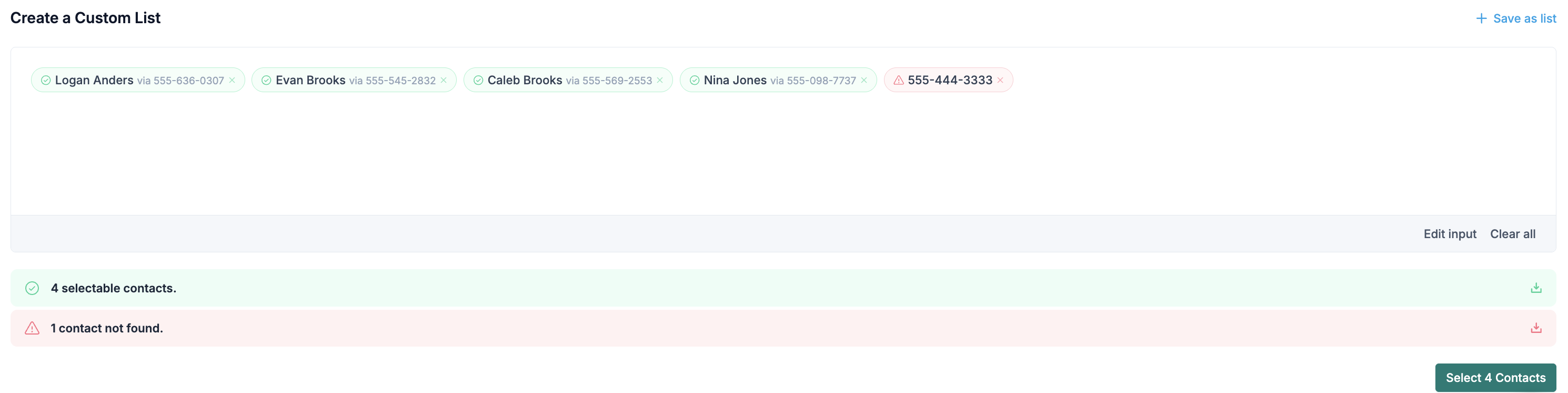
Matched contacts (shown in green highlight) These employees were found in your goHappy contacts. Their name and phone number are shown so you can confirm the right person was matched.
Unmatched entries (shown in red highlight) These entries couldn't be matched to any contact in your account. The original value you pasted is shown so you can identify which ones need attention.
At the bottom of the screen you'll see a summary:
- ✅ X selectable contacts — how many were successfully matched
- ⚠️ X contacts not found — how many couldn't be matched
What To Do Next
Send to the matched contacts
Click Select X Contacts to proceed with all matched employees and compose your message as normal.
Export the unmatched contacts
Click the download icon next to the "contacts not found" row to export the unmatched entries. Use this to investigate why they didn't match — the most common reasons are a name spelling difference, an outdated phone number, or an employee ID that doesn't match what's in goHappy.
Export the matched contacts
Click the download icon next to the "selectable contacts" row to export the list of successfully matched employees.
Save as a list for future use
If you'll be messaging this same group again, click + Save as list in the top right corner to save the matched contacts as a reusable List. Next time, just go to the Lists tab and select it — no pasting required.
Tips for Best Results
- Use Employee IDs for the most accurate matching — names can have spelling variations, but IDs are unique
- Copy directly from a spreadsheet — paste a column of names or IDs and they'll automatically be separated by line breaks
- Check unmatched contacts — if someone isn't matching, their information in your HRIS or payroll system may be outdated or entered differently than expected
- Save frequently used groups as a list — if you message the same group of people regularly, save it once and skip the paste step next time
Frequently Asked Questions
What can I paste into the Custom tab? Names, email addresses, phone numbers, or employee IDs. You can mix and match — paste whatever data you have available and goHappy will try to match each entry to a contact.
What if some of my employees aren't matched? Click the download icon next to "contacts not found" to export the unmatched list. Common causes are name spelling differences, outdated phone numbers, or employee IDs that don't match what's stored in goHappy. The correct data lives in your HRIS or payroll system — once it's updated there, it will sync to goHappy on the next file import.
Can I save my matched contacts as a list? Yes. Click + Save as list in the top right corner to save the matched contacts as a reusable contact list. You'll find it under the Lists tab next time you need to message the same group.
Will it match partial names? For best results use full names, complete phone numbers, email addresses, or employee IDs. Partial information may not match reliably.
Can I use this for scheduled messages? Yes. Select your contacts using the Custom tab, then choose Schedule Message when composing — your custom-matched audience will be used for the scheduled send.
Is the Custom tab available to all users? Yes — both Admins and Managers can use the Custom tab to build a contact selection. Managers will only be able to match and message employees within their assigned access.