.webp?width=100&height=43&name=gohappy-logo-full-green-2%20(1).webp)
Triggers are automated messages that send to employees automatically when they meet specific criteria. Once set up, they run on their own — no one has to do anything for the message to go out.
Common Uses for Triggers
- New hire welcome message — sent on an employee's first day or shortly after
- App download reminders — sent a few days after hire to prompt new hires to download payroll or scheduling apps
- Benefits reminders — sent at specific points in the new hire journey
- Birthday messages — sent automatically on each employee's birthday
- Work anniversary messages — sent automatically on each employee's work anniversary
- Ongoing reminders — recurring messages sent weekly or monthly to specific employee groups
Where to Find Triggers
Hover over Messaging in the top navigation and select Triggers from the menu.
🔐 Note: Only Account Admins can create and manage Triggers.
How to Create a Trigger
Step 1: Click New Trigger
From the Triggers page, click New Trigger to begin.
Step 2: Name Your Trigger
Give the trigger a clear internal name that describes what it does.
Example: "New Hire Welcome," "Day 5 - App Download," "Work Anniversary"
Step 3: Select a Trigger Type
Choose the category that best fits your trigger. Options include:
- Anniversary
- Benefits
- Birthday
- Onboarding
- And more
💡 Tip: The trigger type is for organizational purposes — it helps you keep your triggers organized by category as your list grows.
Step 4: Choose Frequency
Select how often the trigger runs:
| Frequency | Best For |
|---|---|
| Once a day | Most triggers — the default setting |
| Weekdays only | Triggers you don't want firing on weekends |
| Once a week | Weekly recurring messages |
| Once a month | Monthly recurring messages |
The default is once a day, which is the right setting for most hire date and milestone-based triggers.
Step 5: Set the Send Time
Choose what time the trigger runs each day. This time applies across all employees regardless of their location or time zone.
Step 6: Build Your Trigger Criteria
This is where you define which employees receive the message and when. Criteria are built using fields from your HRIS or payroll file.
For a hire date trigger (one-time sends):
- In the first dropdown, select Hire Date
- In the second dropdown, choose your logic:
- Anniversary is on the current date — use this for work anniversary messages that should fire every year on the same date
- Was X days in the past (one time) — use this for new hire triggers that should fire only once, X days after the hire date
💡 Example: For a Day 1 new hire welcome, select "Hire Date was 1 day in the past." For a Day 5 app download reminder, select "Hire Date was 5 days in the past." For a Day 30 check-in, select "Hire Date was 30 days in the past."
The "one time" option is critical for new hire triggers — it ensures the message fires once per employee at the right point in their journey, rather than repeating every year like an anniversary message would.
For recurring triggers:
Use any HRIS field to define your audience — job title, location, department, pay type, and more. The trigger will run at your chosen frequency and send to everyone who matches the criteria at that time.
💡 Tip: You can also use the AI Criteria Builder to describe your logic in plain language (e.g., "7 days after hire date") and let goHappy build the criteria for you.
Step 7: Write Your Message
Compose your message in the message box at the bottom of the page. You can:
- Write the message from scratch
- Use a saved template
- Use goCompose (AI) to help draft the message
- Add tokens to personalize (e.g., employee first name)
- Add images or file attachments
Step 8: Save and Enable
Click Save Trigger when you're done.
⚠️ Important: All new triggers save as Disabled by default. Nothing will send until you enable it. This lets you work on a trigger and come back to finish it without anything going out accidentally.
To enable your trigger:
- Click Edit Trigger
- Click Enable Trigger
Once enabled, goHappy scans all employee data every day at your chosen send time and automatically sends the message to any employee who meets the criteria. No further action is needed.
How the Daily Scan Works
When a trigger is enabled, here's what happens at the scheduled send time each day:
- goHappy scans all employee data from your most recent HRIS file import
- It checks which employees currently match the trigger criteria
- Any employee who matches gets the message automatically
- No one has to manually review or approve anything
💡 Example: A "Day 1 Welcome" trigger set to run daily at 12:00 PM will fire every day at noon. goHappy checks who was hired exactly one day ago and sends them the welcome message. Any new employee added via the HRIS file before noon will receive it that same day.
Managing Existing Triggers
From the Triggers page you can:
- See all your triggers and their current status (Enabled or Disabled)
- Click into any trigger to edit the name, criteria, message, or schedule
- Enable or disable a trigger at any time
- View which employees are being reached by each trigger
How to Test a Trigger
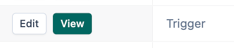
If you'd like to see how a Trigger message looks when it's sent, then you can test it out. From within the Triggers page, click the "View" button on the row for your Trigger.
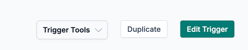
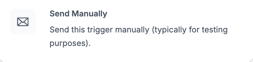
Then click the "Trigger Tools" button and select "Send Manually". You will then be able to select a contact, just like if you were sending a typical message. Select your contact, click "Save Recipients" and then click "Send Now".
Frequently Asked Questions
Who can create triggers? Only Account Admins can create and manage triggers.
Will a trigger fire for employees who were already in the system before I enabled it? This depends on the criteria. For hire date triggers using the "one time" option, it will only fire for employees whose hire date matches the criteria at the time of the daily scan going forward — not retroactively for past employees.
What's the difference between "anniversary is on the current date" and "was X days in the past"? "Anniversary is on the current date" fires every year on the same date — perfect for work anniversaries and birthdays. "Was X days in the past (one time)" fires once, X days after the date — perfect for new hire onboarding sequences where each message should only go out once.
Can I have multiple triggers for the same new hire? Yes. You can build a full onboarding sequence with separate triggers for Day 1, Day 3, Day 5, Day 30, Day 90, and beyond. Each trigger runs independently and fires once per employee at the right point in their journey.
Can I use templates in triggers? Yes. You can apply any saved message template when composing your trigger message.
Can I test a trigger before enabling it? You can send yourself a test message from the message composer to preview how it will look. The trigger itself won't fire until it's enabled.
What happens if I disable a trigger? The trigger stops running immediately. No messages will go out until you re-enable it.