
Need a list of everyone who has opted out of text messages? Or a quick way to sort and filter your contacts outside of goHappy? You can export any contact group to a CSV file in a couple of clicks.
All Users can export contacts.
How to Export Contacts
- Open the contact group you want to export, such as Employees.
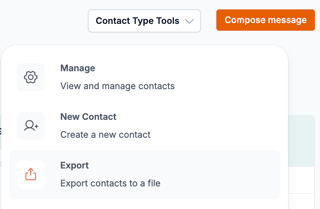
- Click Contact Type Tools in the top-right corner, next to Compose message.
- Click Export (“Export contacts to a file”).
- The CSV file downloads to your computer right away. Open it in Excel, Google Sheets, or another spreadsheet app.
Tip: Turn on your spreadsheet’s filter option (in Excel: Data → Filter; in Google Sheets: Data → Create a filter) to sort and narrow by any column, such as location, department, or opt-out status.
How to Find Everyone Who Has Opted Out
This is the most common reason admins export contacts.
- Export the contact group using the steps above.
- Open the file and find the "SMS Opted Out" column. This will be one of the last columns to the right.
- Filter that column to show only "Yes" values. You now have a list of every employee in that group who has opted out of messaging.
Important: You can’t opt an employee back in for them. They have to text START to your goHappy phone number. Opted-out employees still appear in your contacts and in the export, but you can’t select them when sending messages.
Things to Know
- Who can export: All goHappy Users.
- What’s included: Every contact in the group you’re viewing. Search terms or filters you’ve applied to the contact table on screen don’t limit the export. Filter the spreadsheet after you download it.
- One group at a time: Each export covers one contact group. To export another group (for example, Terminations), open that group and export again.
- A snapshot in time: The file reflects your contacts at the moment you export. Changes made afterward, including new opt-outs or contacts added by your next HRIS import, won’t appear until you export again.
- Keep it secure: The file contains your employees’ personal contact information. Store and share it according to your company’s privacy policies.
Frequently Asked Questions
Can I export only the contacts I’ve filtered or searched for? No. The export always includes the whole contact group. Download the file, then use your spreadsheet’s filters to narrow it down.
How does an employee opt back in? They text START to your goHappy phone number, which you can find on your account homepage. Employees opt out by texting STOP.