.webp?width=100&height=43&name=gohappy-logo-full-green-2%20(1).webp)
✏️ How to Edit a Survey
⚠️ Important: What you can edit depends if the survey is already live or if it's still in draft status
🔍 Finding the Edit Options
To get started:
- Navigate to Feedback > Custom Surveys
- Locate the survey you want to update
- Click the Survey card
- Select green Edit Survey button
📝 Editing a Draft Survey
If your survey is in Draft status, you have full control — everything is editable.
Follow these steps:
- Click on the survey card and choose Edit Survey
- The survey wizard will open at the appropriate step. This is the same survey wizard you have already used.
- Make updates across any section:
- Questions
- Settings
- Messages
- Click Continue to move through steps and save changes
- Or click Save on the Configure step to save without moving forward
- On the final step:
- Click Launch Survey to go live
- Or Save for Later to keep it as a draft
⚙️ Editing a Live or Scheduled Survey
If your survey is Live or Ready (scheduled to launch), you can still make updates.
Here’s what you can edit:
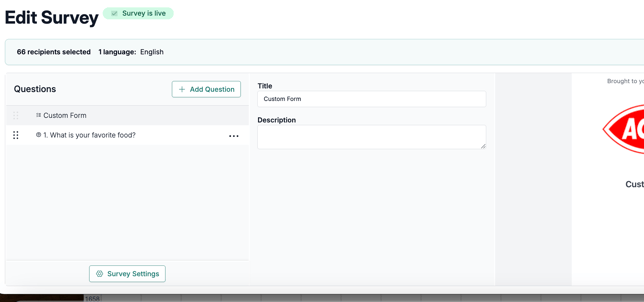
- Survey name and description
- Questions and content
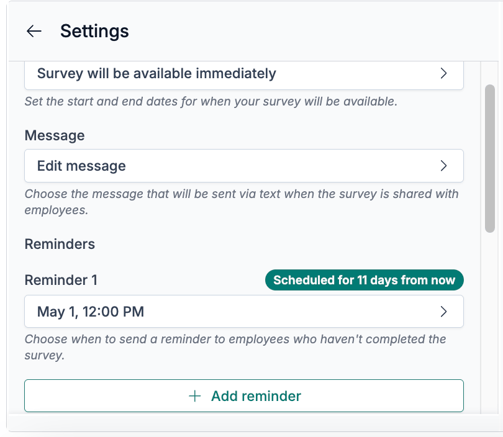
- Reminder messages
- Who has access to the results, Admins or Admins and Managers?
Steps to edit:
- Click on the survey card and select Edit Survey
- The wizard opens only on the screen to edit questions.
- On the bottom left, click "Survey Settings" to access more options.
⚠️ Important Note on Live Surveys
Editing questions on a live survey can impact responses already in progress.
Use caution when:
- Reordering questions
- Deleting questions
- Making significant content changes
📌 Best practice: Avoid structural changes once responses have started coming in.
🧰 Other Actions from the Survey Menu
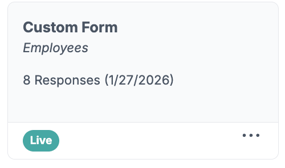
You can do more than just edit — the survey card menu includes additional actions depending on the survey’s status:
Click the 3 dots ... to see more available actions with your survey
| Action | What it does | Available when |
|---|---|---|
| End Survey | Closes the survey to new responses | Live only |
| Cancel Survey | Cancels a survey before it launches | Ready (scheduled) only |
| Reopen Survey | Reopens a finished survey | Finished only |
| Duplicate Survey | Creates a copy of the survey | Any status |
| Delete | Permanently removes the survey | Any status |
🏁 Summary
- ✏️ Draft surveys: Full editing flexibility
- ⚙️ Live/scheduled surveys: Editable with some caution
- 🧰 Menu actions: Give you additional control beyond editing
With these tools, you can keep your surveys accurate, effective, and aligned with your goals — every step of the way.