.webp?width=100&height=43&name=gohappy-logo-full-green-2%20(1).webp)
A User in goHappy is someone who signs in to the platform to send messages, review survey feedback, and more. This is different from a contact — contacts receive text messages and are found in the Messaging section of the tool.
When a User leaves your organization or no longer needs access, an Admin should delete their account to keep your user list clean and your account secure.
Who Can Delete Users
Only Account Admins can delete Users.
How to Delete a User
- Click the Settings wheel (⚙️) in the top right corner of the site
- Click the Users tile
- Search for the User you want to delete by name or email address
- Click Edit next to their name
- Click the User Tools dropdown
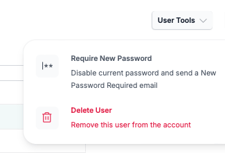
- Select Delete User
- Confirm the deletion when prompted
The User's account will be removed and they will no longer be able to log in to goHappy.
Important Things to Know
Deletions are not automatic User accounts are never deleted automatically — not when someone leaves the company, and not based on any external system. An Account Admin must manually delete each User when they no longer need access.
SSO does not automatically remove Users Even if your organization uses Single Sign-On (SSO), User accounts in goHappy are not automatically deleted when someone is removed from your identity provider. An Admin must still manually delete the User in goHappy. Or if you have a list, goHappy can help periodically delete these Users for you.
Deleting a User does not affect employee records If the User was also linked to an employee contact record, deleting their User account only removes their login access — it does not remove them from your employee contact list or affect their message history.
Frequently Asked Questions
Does deleting a User delete the messages they sent? No. Messages sent by a deleted User remain in the Outbox and are not affected by the deletion.