.webp?width=100&height=43&name=gohappy-logo-full-green-2%20(1).webp)
Message templates let you save frequently used messages and pull them into any outgoing message with one click. Whether you're sending a monthly newsletter, a safety reminder, or a recurring team update — write it once and reuse it whenever you need it.
Watch the video or read the steps below.
Duration: 2 minutes
How to Create a Template — Admin Users
Admins create templates through the Settings menu.
- Click Settings in the main navigation
- Click Templates
- Click New Template in the top right corner
- Fill in the following fields:
- Name — give your template a clear, descriptive name (e.g., "Newsletter January," "Safety Reminder," "Open Enrollment")
- Category — assign a category to keep your templates organized
- Message — type or paste your message content
- Type — choose who can access this template:
- Account — all users in the account can see and use this template
- Personal — only you can see and use this template
- Click Create
Your template is now saved and ready to use.
How to Create a Template — Manager Users
Managers don't have access to the Settings menu, so they create templates through their profile instead.
- Click your profile icon in the top right corner
- Click Profile
- Click Templates
- Click New Template
- Fill in the same fields: Name, Category, Message, and Type
- Click Create
The process and the result are identical — the only difference is where managers navigate to get there.
How to Send a Template
Once your template is created, here's how to use it when sending a message:
- Click Messaging in the main navigation
- Select your contact type (e.g., Employees)
- Select your audience — choose all employees or filter to a specific group
- Click Compose Message
- Click Template
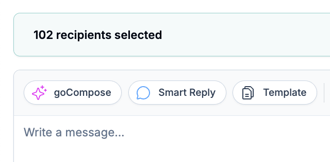
- Find and click your template from the list — it will drop directly into the message box
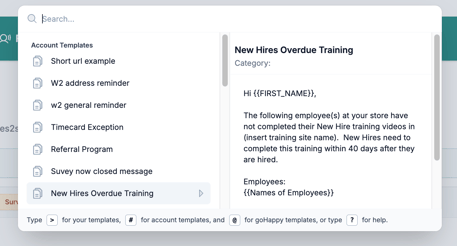
- Make any edits or tweaks you need for this specific send
- Send, schedule, or save as draft
💡 Tip: Templates are a starting point, not a locked message. You can always make on-the-fly edits after selecting a template — for example, updating a date, adding a specific detail, or personalizing the opening line — before hitting send.
Account vs. Personal Templates
| Type | Who Can See and Use It |
|---|---|
| Account | All users in the goHappy account — ideal for company-wide messages that multiple managers might send |
| Personal | Only you — ideal for messages specific to your own workflow or audience |
💡 Example: An Admin might create an Account template for a monthly all-staff newsletter so any manager can send it to their team. A manager might create a Personal template for a message they send to their specific location every week.
Managing Your Templates
To view, edit, or delete existing templates:
- Admins — go to Settings → Templates
- Managers — go to Profile icon → Profile → Templates
From there you can see all templates available to you, edit any existing template, or create new ones.
Can I use tokens in a template? Yes. You can include personalization tokens (like First Name) in your template. When the template is used in a message, the tokens will populate with each employee's individual data at send time.