.webp?width=100&height=43&name=gohappy-logo-full-green-2%20(1).webp)
📝 Creating a Message Draft
1. Choose Your Audience
Start by selecting the audience you want to send your message to.
2. Click “Compose Message”
After your audience is selected, click Compose Message to open the message editor.
3. Write Your Message
Type the message you’d like to send in the message box.
4. Save as a Draft
Not ready to send yet? No problem!
Click Save Draft (located toward the bottom-right of the message box).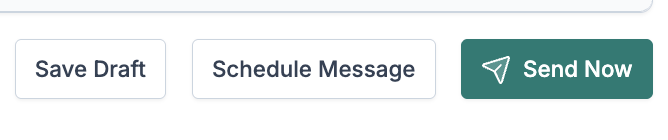
✅ Once saved, the page will automatically update and your message will be stored in the Drafts section of the Outbox.
📂 Finding a Saved Draft
When you’re ready to revisit a drafted message:
1. Go to the Outbox
You can access the Outbox in either of these ways:
-
Hover over Messaging in the top navigation and select Outbox
-
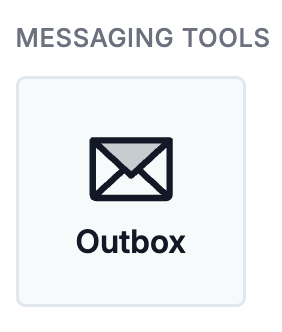
OR, on the Messaging page, click the Outbox tile
2. Open the Drafts Section
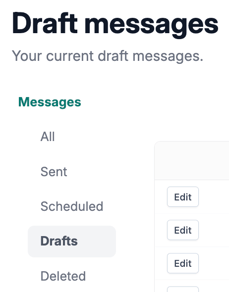
Click on the Drafts tab to view all saved message drafts.
3. Edit Your Draft
Find the message you want and click Edit next to it.
🚀 Sending Your Draft
1. Review and Finalize
Make any last edits to your message to ensure it’s ready to go.
2. Click “Send Now”
Once everything looks good, click Send Now to deliver your message.