.webp?width=100&height=43&name=gohappy-logo-full-green-2%20(1).webp)
Note: Reminder messages are only available to Private surveys(the two options in the image below)
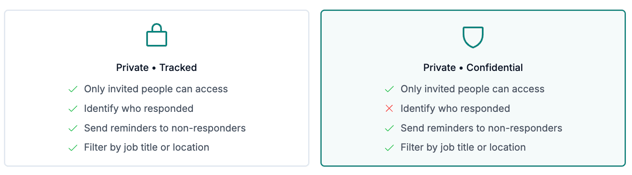
Adding Reminders
1. Add reminders during survey creation
2. Edit a Live survey to add reminders
For Live surveys, click the survey card, then the green "Edit Survey" button. On the bottom left, click Survey Settings

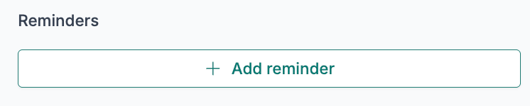
Then click "Add reminder"
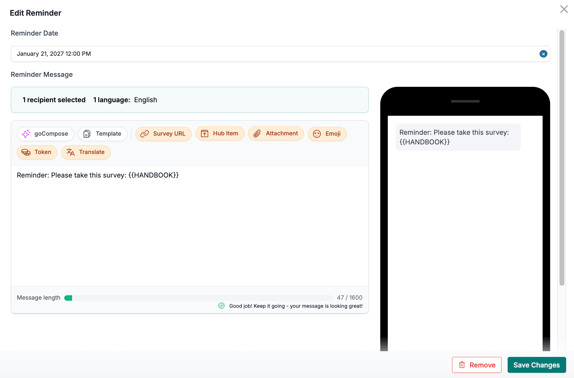
You will then be able to set the date and time for the reminder, update the message, and then click Save Changes.
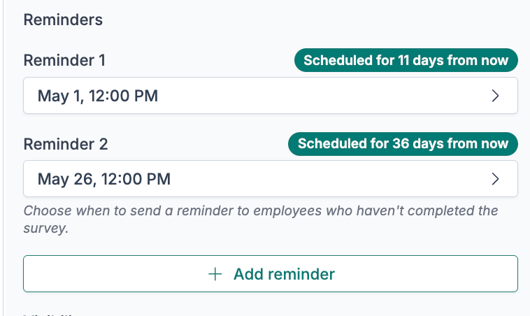
You'll then see a list of the reminder messages that have been added. To remove a reminder message, click the > icon in the row and then click "Remove" at the bottom of the modal.
Tips for effective reminders
Timing matters: A reminder sent too early may be ignored; too late and there isn't time to respond. A good rule of thumb is to send one reminder a day after launch, one near the midpoint of your survey window and another 1–2 days before closing.
Keep it brief: Reminder messages don't need to be long. Something like "Just a quick reminder — we'd love to hear your thoughts! [SURVEY_LINK]" works well.
Personalize when possible: Use tokens like the recipient's first name to make the message feel more personal and less like a broadcast.
Don't over-remind: More than 2–3 reminders can feel intrusive. Be thoughtful about frequency.