.webp?width=100&height=43&name=gohappy-logo-full-green-2%20(1).webp)
When sending links to contacts you can direct employees directly to important resources like Benefit sites, survey links, and other important work resources. Links can be pasted into the message box within goHappy and will show exactly for recipients. Hyperlinks don't work, so you are unable to make the link say HERE and direct somewhere else. Instead, you can use our URL shortener to save characters and count clicks on your link. To do so follow these steps in the messaging screen:
1. Click the Attachment Button
While composing your message, click the Attachment button near the top of the editor.
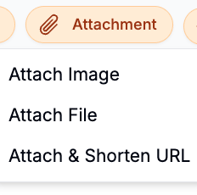
Attach & Shorten URL – Inserts a short URL in place of your original link, using less characters and allows you to track total clicks.
2. Select Attach & Shorten URL
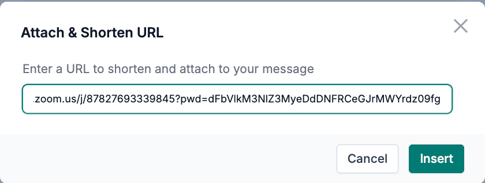
Enter your URL and click Insert
3. Wait for the Upload to Finish
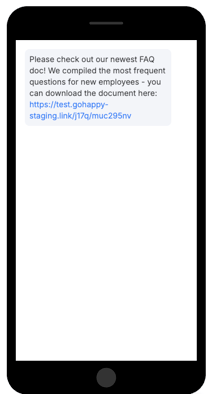
A loading animation will briefly appear on the Attachment button. Once the file is uploaded, a short URL will appear in your message text box.
4. Preview the Link Before Sending
After the short URL loads, the phone screen preview on the right will show the full message including the new link.
🔍 You can click the link in the preview to confirm it opens the correct file.
This is a great way to double-check before sending.
5. Track Engagement in the Outbox
Once the message is sent, open the Outbox to monitor performance. Messages that include short links will display a paperclip icon.

-
Hover over the icon to view how many times the link(s) were clicked.