.webp?width=100&height=43&name=gohappy-logo-full-green-2%20(1).webp)
How to Set Up Email Notification Alerts in goHappy
Every user sets up their own notifications independently, choosing exactly what they want to be notified about and how often.
Where to Find Notification Settings
- Click your profile icon in the top right corner
- Select Notification Preferences
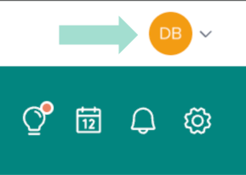
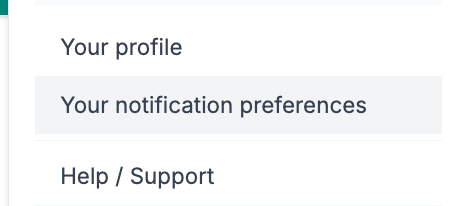
You'll see a list of all available notification types. Each one can be toggled on and set to your preferred frequency.
Notification Frequency Options
Most notifications offer four frequency options:
- Real Time — sent immediately when the activity occurs
- Daily — a digest sent once per day
- Weekly — a digest sent once per week
- Monthly — a digest sent once per month
Choose the frequency that matches how closely you want to monitor each type of activity.
Available Notifications
📊 Monthly Account Report
(Admin only)
Sends a summary at the beginning of each month covering all activity that happened in your goHappy account during the prior month. You'll see stats on total messages sent, top keywords, top 3 scoring new hire survey questions and the bottom 3 questions.
✅ Recommended: Turn this on if you're an Admin — it's a great way to stay on top of overall platform activity without checking in daily.
🎂 Important Dates — Birthdays & Work Anniversaries
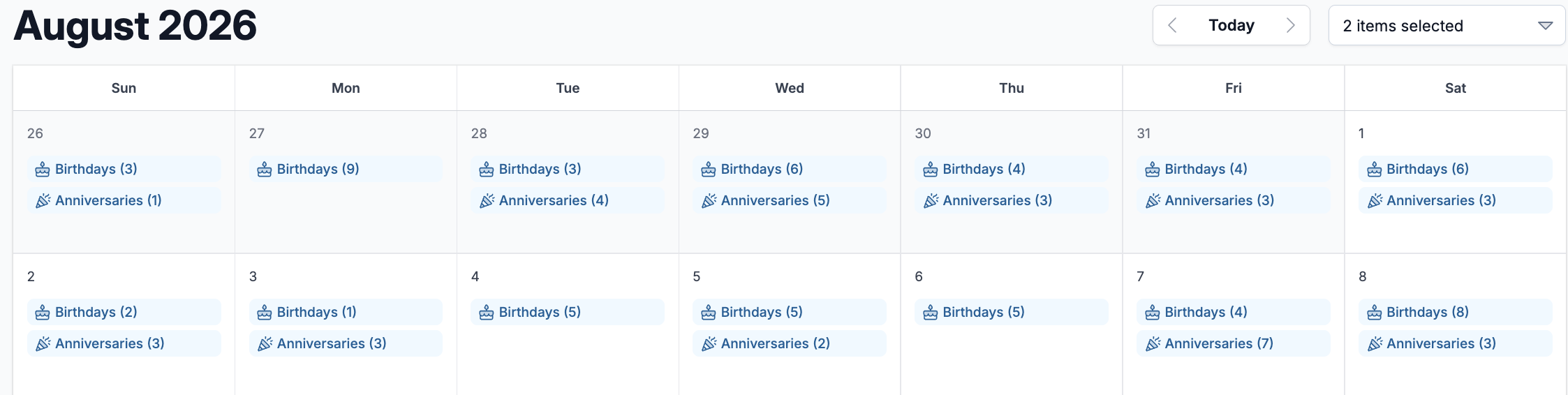
Get notified when employees on your team have an upcoming birthday or work anniversary. The weekly email is sent every Monday morning and makes it easier for your managers, so they don't have to remember more dates.
Since goHappy sends automated texts for these milestone moments, this notification helps leaders take additional action — like recognizing the employee in person or sending a personal message.
Frequency options: Real Time, Daily, Weekly, or Monthly
⚠️ Note for Admins: If you're an Account Admin, enabling this notification means you'll receive it for your entire organization — which can be a lot of emails. This notification is most useful for location-based or department-based managers who want to stay informed about their specific team.
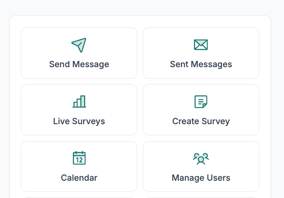
You can also look at a Calendar view of notifications, like Birthdays or Work Anniversaries. Click the main Dashboard page on the top navigation. Then select the Calendar icon on the left. You'll then see upcoming Work Anniversaries or Birthdays for employee contacts you have access to. Admins will see everyone.
📋 Survey Responses
For users with access to the Feedback module, you can receive email notifications whenever survey responses come in. The email includes the full survey response so you can review it directly from your inbox.
Frequency options: Real Time, Daily, Weekly, or Monthly
Low Scoring Response Alerts
A separate notification is available specifically for low scoring responses — triggered when a survey response includes a rating of 1 or 2 on any item.
💡 Best practice: Many users set their general survey response notification to Weekly (to get a regular digest of all responses) while setting the low scoring response notification to Real Time — so they can take quick action when a concerning response comes in.
⚡ Triggers
Get notified when automated trigger messages are sent, including who received them and when. Useful for staying on top of your new hire onboarding sequences or other automated messaging cadences.
Frequency options: Real Time, Daily, Weekly, or Monthly
🔑 Keywords
Get notified when an employee uses a specific keyword. For example, if you want to know every time someone texts "BENEFITS" so you can follow up with them directly, you can set up a notification for that keyword.
Frequency options: Real Time, Daily, Weekly, or Monthly
👥 Referrals
If your organization uses goHappy's Referrals feature, you can receive notifications for:
- New referral submitted — when an employee submits a new referral
- New referral payment due — when a referral payment needs to be processed
Frequency options: Real Time, Daily, Weekly, or Monthly
🚫 Opt-Outs
Receive a digest of employees who have opted out of receiving goHappy text messages. Notifications are available per contact type, so you can monitor opt-outs for specific employee groups separately.
Frequency options: Daily, Weekly, or Monthly
💡 Tip: Use this to keep tabs on opt-out trends over time. A sudden spike in opt-outs could signal that messaging frequency or content needs adjustment.
Important Things to Know
Every user controls their own notifications Notifications are set up individually — each user decides what they want turned on and at what frequency. Admins cannot configure notifications on behalf of other users.
Admins receive notifications for the whole organization Because Admins have access to all employees, any notification they enable will cover the entire organization. Location-based managers will only receive notifications for the employees within their assigned area.
You can change your frequency at any time There's no limit to how often you can adjust your notification settings. If a weekly digest feels like too much or too little, just come back to Settings → Notifications and update it.
Frequently Asked Questions
Can I turn on notifications for just one specific survey? Yes. Survey notifications are available per survey, so you can choose which surveys trigger email notifications and at what frequency.
Can I get notified for low scores on all surveys or just specific ones? The low scoring response notification is configured per survey, giving you control over which surveys trigger those real-time alerts.
I'm a manager — will I get notifications for employees outside my location? No. Managers only receive notifications for employees within their assigned location or department. Account Admins will receive notifications for the entire organization.
Can my Admin turn on notifications for me? No. Each user must set up their own notifications in their own account settings.
What counts as a low scoring response? Any survey response that includes a rating of 1 or 2 on any individual rating question will trigger the low scoring response notification.