.webp?width=100&height=43&name=gohappy-logo-full-green-2%20(1).webp)
📥 Reviewing Smart Reply Responses
Overview
Smart Reply makes it easy to gather quick responses from your team. Once your message has been sent, you can track responses and follow up directly from the Smart Reply details page.
You’ll know a message includes Smart Reply responses by looking for the blue chat bubble icon next to the message in your Outbox.
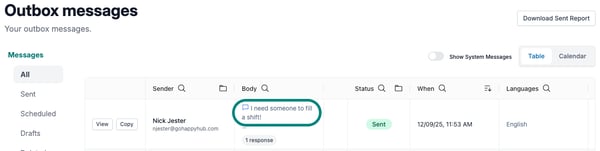
Click the message title or “View” button to open the full Smart Reply response details.
📊 What You’ll See on the Smart Reply Page
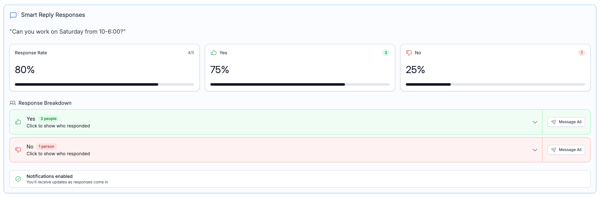
The Smart Reply Details Page includes:
-
Response Rate — Total responses and response percentage
-
Answer Breakdown — For Yes/No or multiple-choice questions, you’ll see how many chose each option
-
Response List — Contact-level view of who responded and how
-
Response Time — See how quickly each person responded
-
Individual Follow-Up Options — Send a message to a single person based on their reply

✉️ Messaging Contacts Based on Their Response
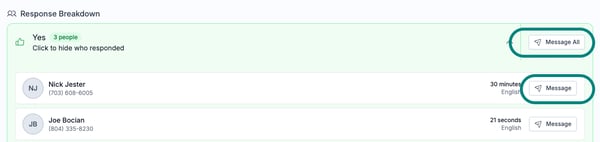
From the response list, you can:
-
Click “Message All” to follow up with everyone who gave the same response (e.g., all who said “Yes”).
-
Click the ✉️ “Message” button next to any contact’s name to follow up individually.
Each follow-up becomes a new outbound message and will appear separately in your Outbox.
🔔 Notification Emails (Optional)
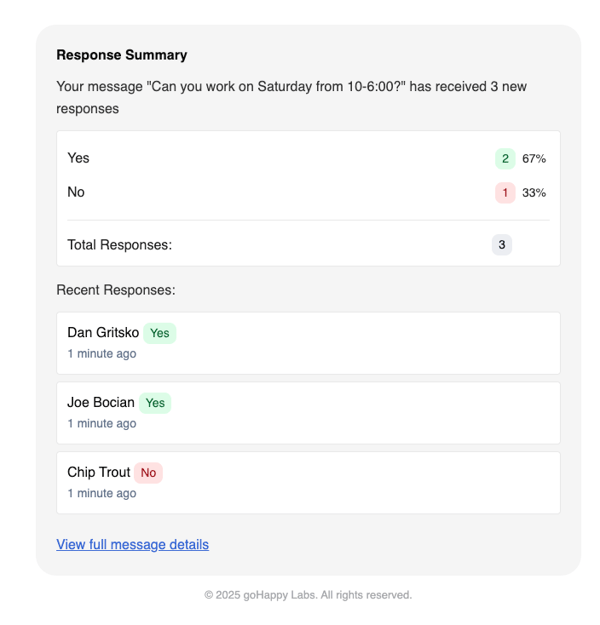
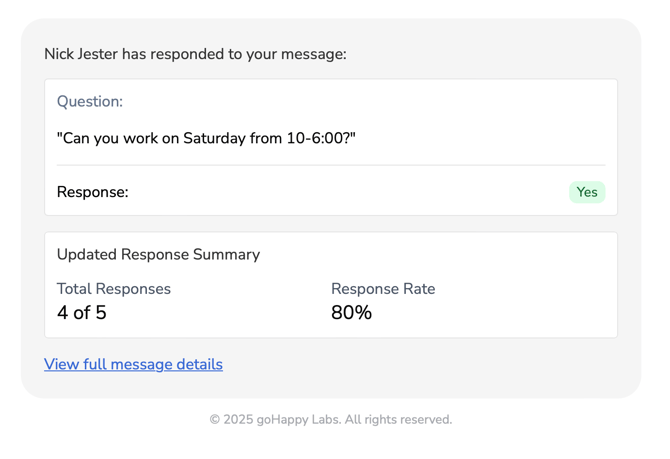
If you selected to receive notifications when scheduling your message, you’ll get an email with new responses.
To reduce noise, responses submitted within a rolling 60-second window will be grouped into one email. The "View full message details" link on the notification will direct you to the details page for the selected message.