.webp?width=100&height=43&name=gohappy-logo-full-green-2%20(1).webp)
How to Review Your Engagement Survey Results
Navigate your engagement survey dashboard, filter by segment, and use the Leader Feedback Report to take action
Step 1: Navigate to Your Survey Results
1. Click Feedback in the main navigation
2. You'll see your engagement survey listed — click on it to open the results dashboard
💡 Tip: If you don't see the survey listed check with an account Admin to ensure your account permissions are correct
Step 2: Understand and Use Segments
At the top of the results page you'll see Segments — filters that let you view results for a specific part of your organization, such as a particular store, location, department, or region. Segments are unique to your organization and will reflect the structure of your employee data.
💡 Tip: If you have many segments, use the left and right arrows to scroll through all available options.
Filtering by a Segment
1. Click the dropdown for the segment you want to filter by (e.g., Location)
2. Select the specific value you want to view (e.g., Briarcliff Plaza)
3. The scores on the dashboard will update to reflect only that segment
Important: Segments Follow You
Once you apply a segment, it stays applied as you navigate through the entire survey experience — including the Leader Feedback and Development Report. You don't need to reapply it each time you move to a new section.
Clearing a Segment
- Click the X button on the applied segment tag, or
- Open the segment dropdown and click Reset
Step 3: Navigate the Three Result Sections
Your engagement survey results are organized into three sections, accessible from the left navigation:
1. Employee Engagement
This section covers how engaged employees feel in their roles. Results are broken down into three subsections:
- Perform — employees' ability and motivation to do their best work
- Commit — employees' commitment and intention to stay
- Promote — employees' likelihood to recommend the company as a great place to work
2. Employee Experience
This section covers how employees feel about their day-to-day experience. Results are broken into:
- Valued — whether employees feel recognized and appreciated
- Connected — whether employees feel a sense of belonging and connection
3. Leader Actions
This section covers how employees perceive their leaders. Results are broken into:
- Authentic — whether leaders are perceived as genuine and trustworthy
- Showing Appreciation — whether leaders recognize employee contributions
- Connecting — whether leaders build relationships with their team
- Coaching — whether leaders support employee growth and development
Step 4: View Comments
Each question in all three sections has an optional comments indicator on the right side of the question row:
- Grayed out = no comments were left for that question
- Highlighted/active = comments exist — click to view them
When viewing comments, use the graph at the top to navigate directly to comments associated with specific score ranges. This helps you quickly find the most critical feedback without reading through everything.
Step 5: Access the Leader Feedback and Development Report
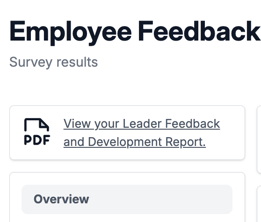
The Leader Feedback and Development Report is a comprehensive PDF-style report available from the Leader Actions section. It's available on the Overview/Dashboard of your engagement survey in the top left. Click the link on that page and it will open in a new window.
> 💡 Note: Any segments you've applied on the dashboard will automatically carry over into the report — you don't need to reapply them.
What the Report Contains
Overview section
An introduction to the goHappy Frontline Employee Engagement Model, covering the framework behind the survey — Leader Actions, Employee Experience, Employee Engagement, and the FeedForward approach.
Your Results
Your segmented data is displayed side by side with your overall company data, with your segment highlighted in green throughout the entire report. This makes it easy to compare how a specific location or group performed against your organization as a whole. The green highlighted column remains visible as you scroll through every section of the report.
Three Opportunity Areas
At the bottom of the report, goHappy automatically surfaces your three lowest-scored items as your Opportunity Areas. These represent the biggest gaps to address before your next survey.
> 💡 How to use this: These three items give you and your leaders a clear, data-driven starting point for action. Rather than trying to improve everything at once, focus on moving the needle on these three areas between now and the next survey.
Additional Resources
Immediately below the Opportunity Areas, the report includes resources and ideas to help leaders think about changes they can make to improve scores in those areas.
Tips for Getting the Most Out of Your Results
Start with the segment that matters most to you
If you manage multiple locations or departments, filter to the one you're most focused on before diving into the details. The segment will follow you everywhere so you only have to set it once.
Use comments alongside scores
A score tells you *what* — comments tell you *why*. Use them together to understand the full picture behind any question.
Share the Leader Report with your managers
The Leader Feedback and Development Report is designed to be shared directly with location-level managers. The Opportunity Areas give them a concrete action plan without requiring them to dig through all the data themselves.
Compare segment to company
The green-highlighted column in the report lets managers see exactly how their location stacks up against the broader organization — a powerful motivator for improvement.
Frequently Asked Questions
Can I view results for a specific location or department?
Yes — use the Segments filter at the top of the results page to narrow results to any specific group within your organization.
What are the Three Opportunity Areas?
These are the three lowest-scored questions across your survey results (or within your selected segment). They're automatically calculated and displayed at the bottom of the Leader Feedback and Development Report as a starting point for action.
What is the FeedForward approach mentioned in the report?
FeedForward is a development framework focused on future-oriented feedback — rather than dwelling on past performance, it emphasizes what leaders can do differently going forward to improve engagement. The report overview explains this in more detail.
How often should we run an engagement survey?
Your goHappy Customer Success Manager can advise on the recommended cadence for your organization. Most organizations run the full engagement survey once a year. We offer a smaller mid-year engagement survey that can be used to follow up several months later.
Can managers access the results for their own location only?
Yes. Based on how user permissions are configured in goHappy, managers can be limited to viewing only the data for their assigned location or department. Engagement survey results can also be limited to just Admins or Admins and Managers.