.webp?width=100&height=43&name=gohappy-logo-full-green-2%20(1).webp)
📎 How to Attach an Image to a Message in goHappy
1. Click the Attachment Button
While composing your message, click the Attachment button near the top of the editor.
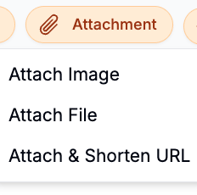
You’ll see three options:
-
Attach Image – Adds an image directly into the message.
-
Attach File – Uploads a file and inserts a short URL that links to it.
- Attach & Shorten URL – Inserts a short URL in place of your original link, using less characters and allows you to track total clicks.
If you'd like to learn more about attaching files or having clicks counted, then check out this help article.
Supported File types:
- Image files (.jpg, .jpeg, .png, .webp, .gif)
2. Click Attach Image
Search for the image you want to send in your text message. Select the item and then wait for the upload to finish.3. Finalize and Send Your Message
Add any message content with the image as needed, then click Send.