.webp?width=100&height=43&name=gohappy-logo-full-green-2%20(1).webp)
You can now include Frontline Engagement Hub content directly in automated text messages sent through Triggers — like onboarding messages, milestone communications, or recurring updates.
🧭 Step 1: Create or Edit a Trigger
From the Triggers page, you can:
- Create a new trigger, or
- Click Edit on an existing one.
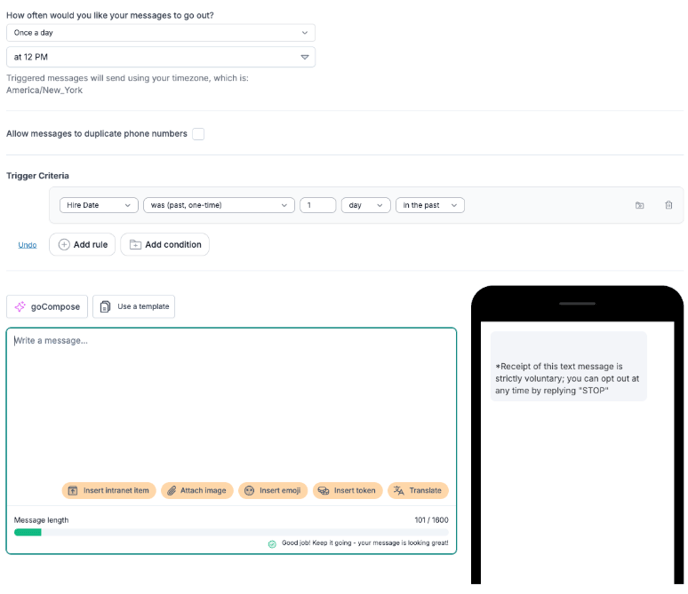
Inside the message editor, you’ll find the same content tools used for Keywords.
📂 Step 2: Insert a Hub Item
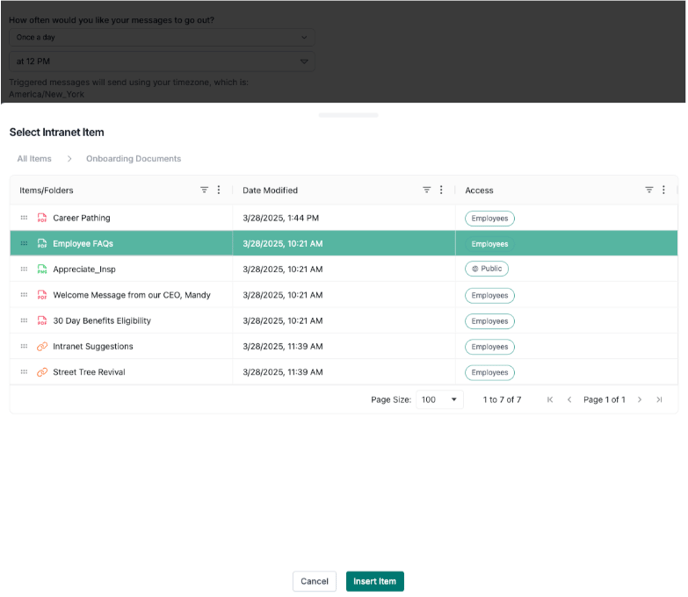
Click the ➕ Insert Hub Item button within the message editor. This will open a content drawer showing your Hub items.
✅ Step 3: Select and Insert the Item(s)
Browse the list or use search to find what you need. Once you’ve selected a Hub item, click Insert Item.
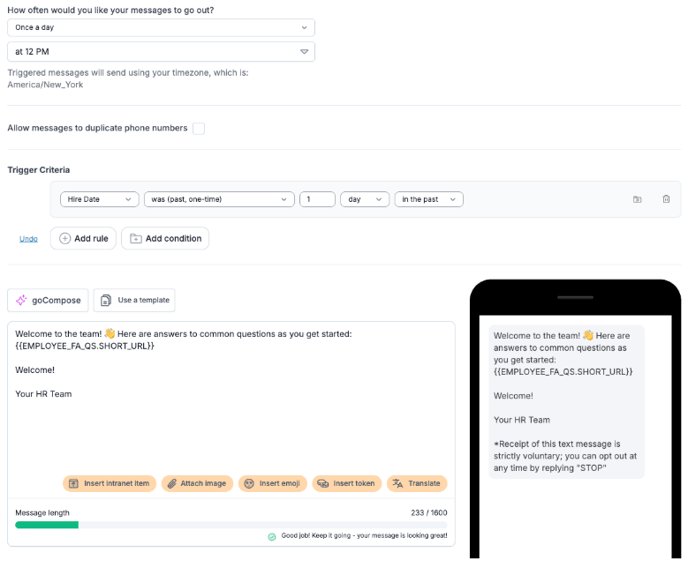
A token (e.g., {{IntranetItem:WelcomeGuide}}) will appear in the message field. When the Trigger runs, this token will be replaced with a clickable link to the Hub item.
💡 You can include multiple Hub items in a single message, just like you can with keywords.