.webp?width=100&height=43&name=gohappy-logo-full-green-2%20(1).webp)
📎 How to Attach a File to a Message in goHappy
You can now attach files such as PDFs or Word documents to your outgoing text messages in goHappy using a short URL. This makes it easier to share resources with your contacts and track link engagement — all within your existing workflow.
🆕 This expands on the existing image attachment feature. You can now include images, files, or both in a single message.
📝 How to Attach a File
1. Click the Attachment Button
While composing your message, click the Attachment button near the top of the editor.
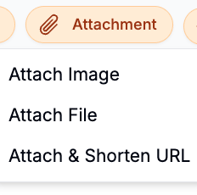
You’ll see three options:
-
Attach Image – Adds an image directly into the message (as before).
-
Attach File – Uploads a file and inserts a short URL that links to it.
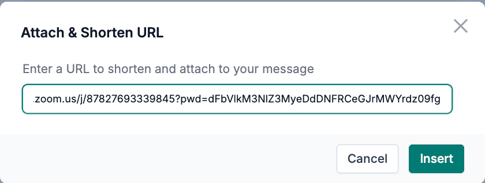
- Attach & Shorten URL – Inserts a short URL in place of your original link, using less characters and allows you to track total clicks.
2. Select Attach File
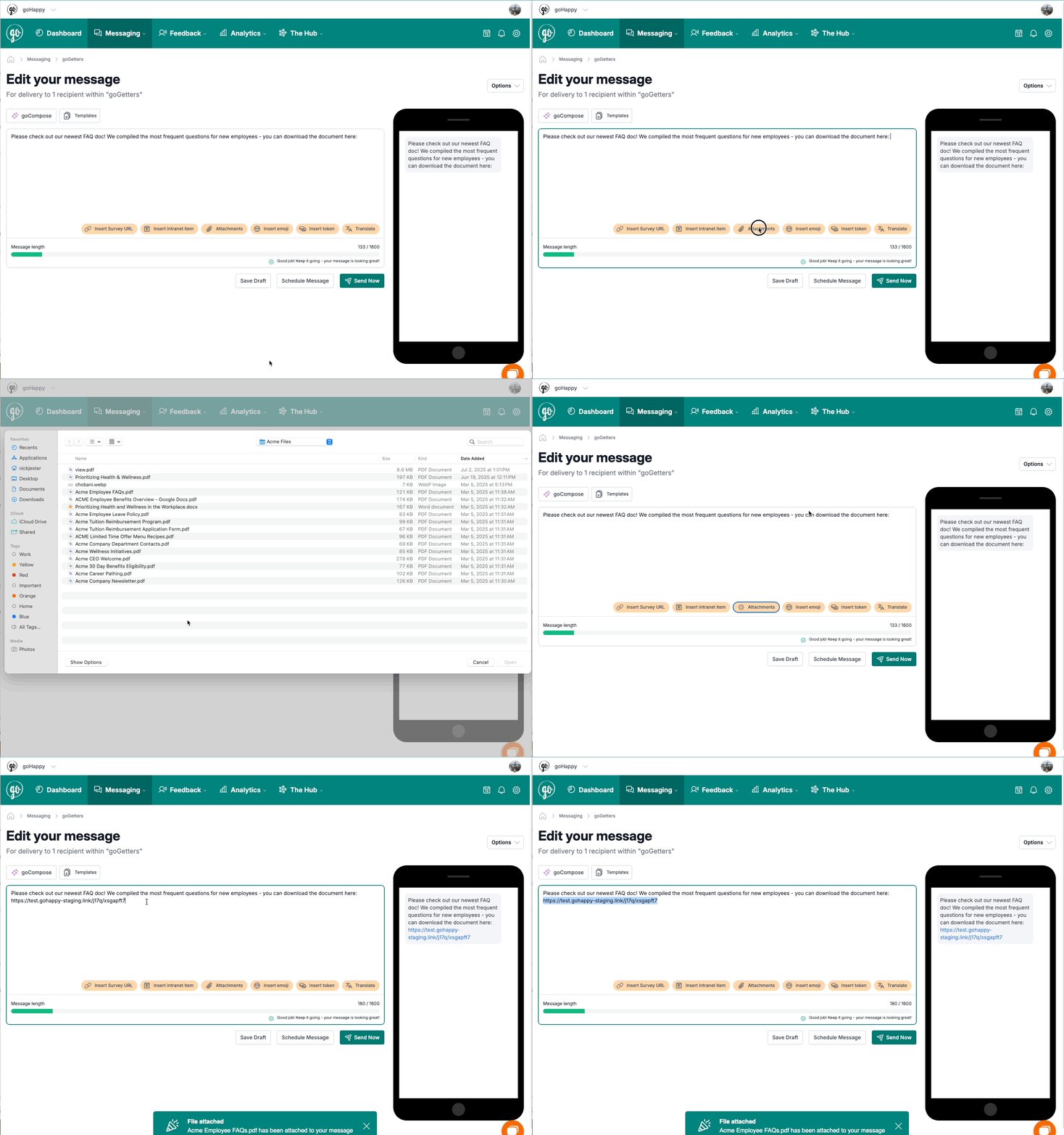
Choose Attach File. A file picker will open so you can select a document from your device (e.g. PDF, DOCX). If you have multiple images you would like to send, you can upload them as additional attachments.
Supported File types:
- Image files (.jpg, .jpeg, .png, .webp, .gif)
-
CSV files (.csv, .tsv)
-
Plain text files (.txt)
-
Rich text files (.rtf)
-
PDF documents (.pdf)
-
Microsoft Word documents (.doc, .docx)
-
Apple Pages documents (.pages)
-
OpenDocument text files (.odt)
-
Microsoft Excel spreadsheets (.xls, .xlsx)
-
HTML files (.html)
-
Markdown files (.md)
3. Select Attach & Shorten URL
4. Wait for the Upload to Finish
A loading animation will briefly appear on the Attachment button. Once the file is uploaded, a short URL will appear in your message text box.
Example link:
https://test.gohappy-staging.link/j17q/muc295nv
5. Preview the Link Before Sending
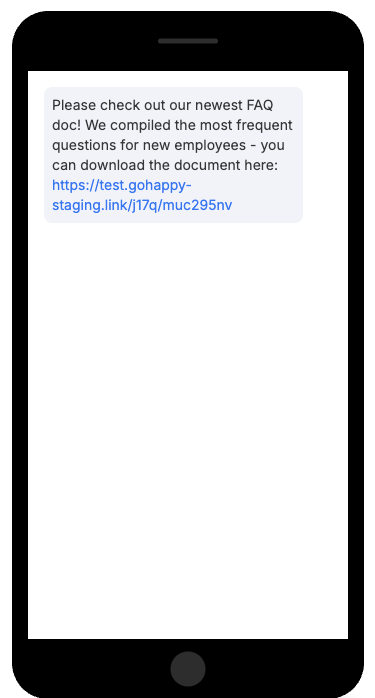
After the short URL loads, the phone screen preview on the right will show the full message including the new link.
🔍 You can click the link in the preview to confirm it opens the correct file.
This is a great way to double-check before sending.
6. Finalize and Send Your Message
Add any message content around the link as needed, then click Send.
📤 What Recipients See
Recipients will receive your text message including the clickable short link that opens the attached file.
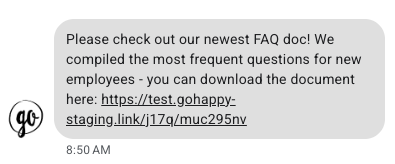
The file will open in a mobile-friendly viewer, depending on the device and file type.
📊 Track Engagement in the Outbox
Once the message is sent, open the Outbox to monitor performance. Messages that include file links will display a paperclip icon.

-
Hover over the icon to view how many times the link(s) were clicked.
-
Multiple file links in one message are supported — and all clicks are tracked.
💡 Additional Tips
-
You can still attach an image and one or more file links in the same message.
-
File links use goHappy’s short URL system for easy delivery and tracking.
-
Use the preview panel to ensure everything looks right before sending.