.webp?width=100&height=43&name=gohappy-logo-full-green-2%20(1).webp)
What the New Hire Retention dashboard shows
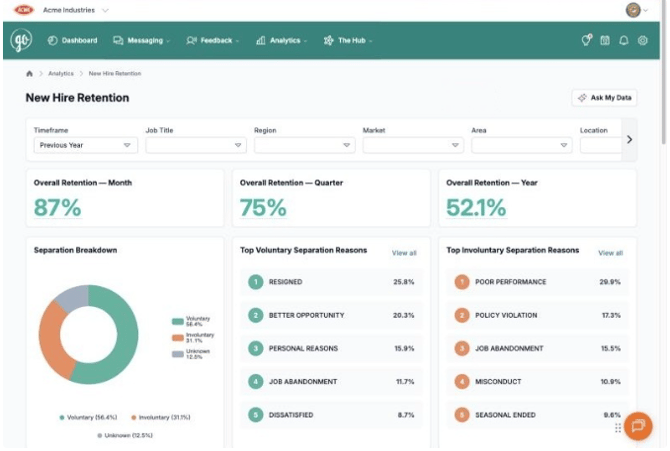
The New Hire Retention dashboard shows what share of your new hires are still employed 30, 90 and 365 days after their hire date, when in their first year people tend to leave, and why. Use it to find out whether you are losing people early (often an onboarding or hiring-fit problem) and which positions and locations keep new hires best.
You'll find it under Analytics → New Hire Retention (or go directly to app.gohappyhub.com/analytics/retention).
Retention vs. turnover: Retention follows a group of new hires forward from their hire date and asks "how many are still here?" Turnover (on the Employee Turnover dashboard) looks at your whole workforce over a period and asks "how many left?" Use both: turnover tells you how much churn you have; retention tells you how early in the job it happens.
The dashboard is built from the hire dates, termination dates, termination types and reasons goHappy receives from your HR or payroll system.
Recommended data setup: a daily import of the past 24 months of employee data (active and terminated employees) from your HRIS. Year retention needs at least 12 months of follow-up after each hire, so 24 months of history gives goHappy enough data to track rolling 12-month retention accurately. Contact your Customer Success Manager (CSM) to set this up or to adjust which employees are included.
The names in this article are examples. Your filters and columns are named after the fields your HR or payroll system (HRIS) sends to goHappy, so they may look different from the screenshots. Depending on your data, you can filter and compare retention by:
- Location
- Job Title
- Job Family (a grouping of related job titles)
- Any level of your organization's hierarchy — for example Region, District, Market or Area
This article uses Job Title, Region, Market, Area and Location from our demo account. Wherever you see those names, look for the matching field in your account.
Termination reasons are examples too. Reasons such as Resigned, Better Opportunity or Poor Performance come from your HRIS, so your list will match the reasons your organization uses. The Voluntary and Involuntary categories are the same for every account.
Step by step: open the dashboard and set your filters
- In the top navigation, click Analytics, then New Hire Retention.
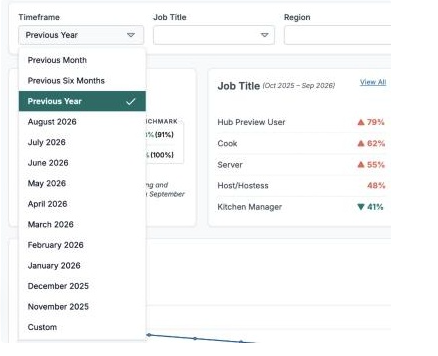
- Set the Timeframe (top left of the filter bar). The default is Previous Year. You can choose Previous Month, Previous Six Months, Previous Year, a single recent month, or Custom (enter a From and To date; Reset returns to the default). The timeframe controls which hiring months (cohorts) appear in the Cohort Retention Table.
- Narrow the data with the filters next to Timeframe. They match your fields — for example Job Title, Region, Market, Area and Location. If there are more filters than fit, click the › arrow at the right of the filter bar to see the rest.
- In any filter, click as many values as you want; each gets a check mark. Type to search, turn on Selections only to see just your picks, or click Reset to clear the filter.
- Click outside the dropdown to apply. The page reloads its cards with your filters; if you briefly see "Not enough data yet", wait a few seconds for it to finish loading.
Tip: Your filters are saved in the page address. Bookmark it, or copy the link to share the same view with a colleague who has Analytics access.
Overall Retention — Month, Quarter and Year
The three cards at the top answer one question at three milestones: of the new hires old enough to be measured, what percentage were still employed at that point?
|
Card |
Milestone |
Who is counted |
Example |
|---|---|---|---|
|
Overall Retention — Month |
30 days after hire |
Employees hired at least 30 days ago |
87% |
|
Overall Retention — Quarter |
90 days after hire |
Employees hired at least 90 days ago |
75% |
|
Overall Retention — Year |
365 days after hire |
Employees hired at least 365 days ago |
52.1% |

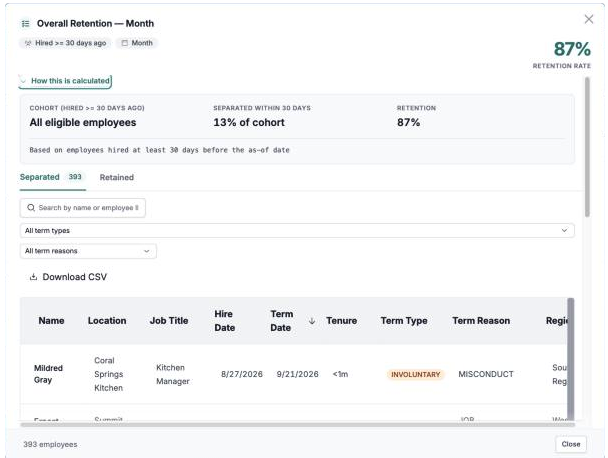
Example: 13% of eligible new hires separated within their first 30 days, so 30-day retention is 87%.
Someone hired 2 weeks ago isn't counted in any card yet, because they haven't reached 30 days. That keeps recent hires from making retention look better than it is.
See who is behind each number
- Click the percentage on any card.
- Click How this is calculated to see the cohort, the share who separated and the resulting retention rate.
- Switch between the Separated and Retained tabs to see who left and who stayed. The number on the tab is the count of employees.
- Search by name or ID, filter by term type or term reason, or click Download CSV.
Why new hires leave: Separation Breakdown and top reasons
The second row explains why new hires left.
- Separation Breakdown (donut chart) splits separations into Voluntary (the employee chose to leave), Involuntary (the employer ended employment) and Unknown (no term type was sent from your HR system). In the example, 56.4% were voluntary, 31.1% involuntary and 12.5% unknown.
- Top Voluntary Separation Reasons ranks the five most common reasons among voluntary separations, as a share of all voluntary separations (for example, Resigned 25.8%, Better Opportunity 20.3%).
- Top Involuntary Separation Reasons does the same for involuntary separations (for example, Poor Performance 29.9%, Policy Violation 17.3%).
Click View all on either reasons card to see every reason, not just the top five. The reasons listed are the ones your HRIS sends, so they'll differ from these examples; the Voluntary and Involuntary grouping is the same for every account.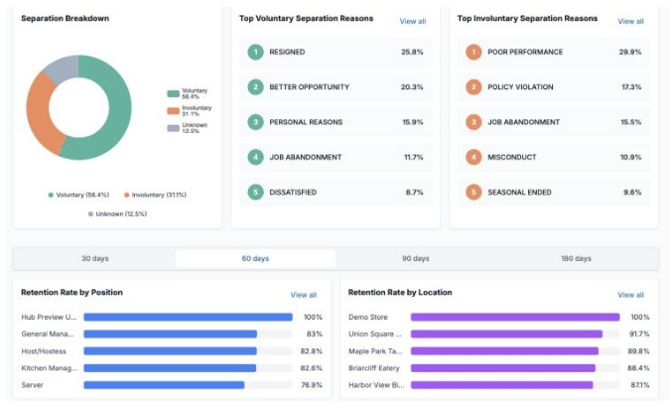
How to read it: Mostly voluntary reasons such as Better Opportunity or Dissatisfied point to pay, schedules, managers or the early experience. Mostly involuntary reasons such as Poor Performance or Policy Violation point to hiring fit, training or how expectations are set during onboarding.
A large Unknown slice means termination types aren't being recorded in your HR or payroll system. Ask your HR system administrator to fill in term type and term reason for every termination so this chart stays useful.
Retention Rate by Position and by Location
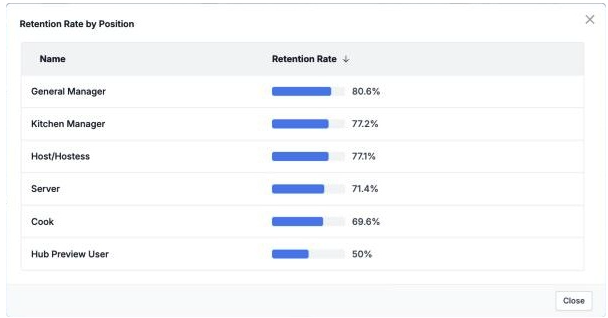
These two cards rank your positions (your job title field) and locations by new hire retention, highest first, so you can see who keeps new hires best. To compare other groups, such as a job family or a level of your hierarchy, use the filters at the top of the page.
- Pick a milestone with the tabs above the cards: 30 days, 60 days, 90 days or 180 days. The page opens on 60 days. Both cards update; the rest of the page doesn't change.
- Read each bar as the percentage of new hires in that position or location still employed at that milestone. For example, on the 90-day tab, General Manager shows 80.6% and Cook shows 69.6%.
- Click View all to open the full list of every position or location, sorted by retention rate.
Tips
- Compare tabs. A location that looks fine at 30 days but drops sharply by 90 days is losing people after onboarding ends.
- Be careful with very small groups. A position or location with only a handful of hires can show 100% or 50% because one person stayed or left. Check the employee count before acting on it.
- Use the filters to compare like with like, for example only Servers across locations.
Retention Trends and when in the first year people leave
Retention Trends chart
The chart shows 30-day new hire retention for each hiring period: of the people hired in that period, what percentage were still employed 30 days later. Hover over a point to see its rate, or click it to see the employees behind it. A rising line means recent hires are sticking better; dips show hiring periods to investigate (for example, a seasonal hiring push).
Tenure bands
Under the chart, five cards show how many new hires left during each stretch of their first year:
|
Band |
Exited |
% of cohort |
Normalized drop (per 30 days) |
|---|---|---|---|
|
0–30 Days |
400 |
13.2% |
13.2 |
|
31–60 Days |
199 |
6.9% |
6.9 |
|
61–90 Days |
135 |
4.9% |
4.9 |
|
91–180 Days |
221 |
9.8% |
3.3 |
|
181–365 Days |
199 |
13% |
2.1 |
- Exited — the number of new hires who left during that band.
- % of cohort — that number as a share of the new hires being tracked.
- Normalized drop — the % of cohort spread evenly over 30-day blocks, so bands of different lengths can be compared fairly. For example, 91–180 Days is 90 days long: 9.8% ÷ 3 = 3.3 per 30 days.
The band outlined in red with a warning icon is the one where new hires are leaving fastest. Click any band to see the employees who left during it.
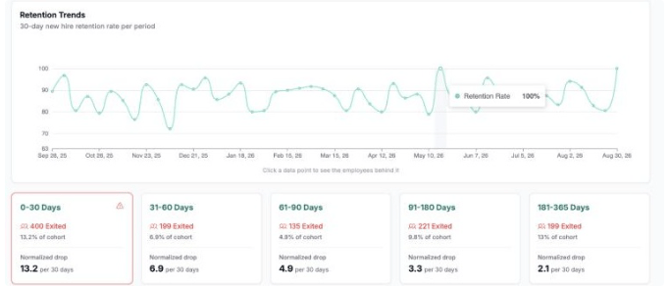
How to read it: Compare Normalized drop, not raw % of cohort. In the example, 181–365 Days has a similar % of cohort to 0–30 Days (13% vs 13.2%), but its normalized drop is six times lower: the first 30 days are where the real risk is.
Cohort Retention Table
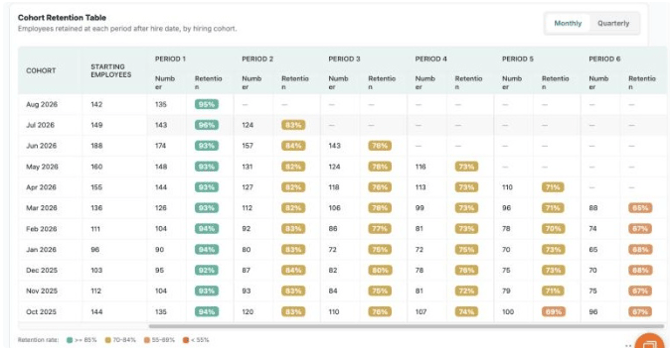
The Cohort Retention Table follows each group of new hires (a cohort, grouped by the month or quarter they were hired) and shows how many were still employed at each period after their hire date. It's the best way to see whether new hires from recent months are staying longer than those from earlier months.
How to read a row:
- Cohort — the hire month (for example, Oct 2025).
- Starting Employees — how many people were hired in that cohort (144).
- Period 1, Period 2, … — 1, 2, … months after hire (or quarters, in Quarterly view). Number is how many were still employed; Retention is that number as a percentage of Starting Employees.
- — means that cohort hasn't been employed long enough to reach that period yet.
In the example, the Oct 2025 cohort started with 144 people; 135 (94%) remained after one month and 96 (67%) after six months.
Color key:
|
Color |
Retention |
|---|---|
|
Green |
85% or higher |
|
Yellow |
70–84% |
|
Orange |
55–69% |
|
Red |
Below 55% |
Steps:
- Click Monthly or Quarterly at the top right of the table to group cohorts by hire month or hire quarter.
- Scroll right inside the table to see later periods.
- Read down a column to compare cohorts at the same point in their tenure. If recent cohorts are greener than older ones in the same column, your changes to hiring or onboarding are working.
- Read across a row to see where a single cohort drops off fastest.
- Use the Timeframe filter to choose which hire months appear.
Digging deeper: employee lists and Ask My Data
Download an employee list
Any number you can click (an Overall Retention card, a point on the Retention Trends chart, a tenure band) opens a list of the employees behind it. Use the term type and term reason filters to narrow it, then click Download CSV to save it as a spreadsheet.
Ask My Data
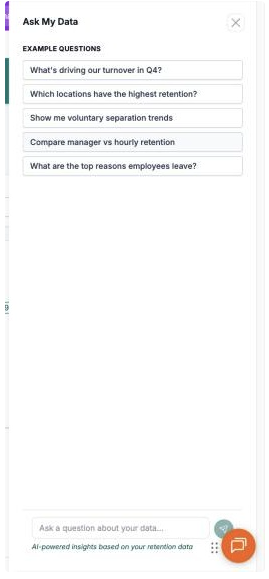
Ask My Data answers questions about both your retention and your turnover data in plain English, so you can get an answer without building a report or switching dashboards. It's available from the top right of both the New Hire Retention and Employee Turnover dashboards.
- Click Ask My Data. A panel opens on the right.
- Click one of the Example questions, or type your own in the Ask a question about your data… box, then press Enter.
- Click the X to close the panel.
Questions you might ask:
- Which locations have the highest 90-day retention?
- What are the top reasons new hires leave in their first 30 days?
- Compare manager vs hourly retention
- Which job titles have the highest turnover this year?
- Show me voluntary separation trends
Be specific about the group and period, and check important answers against the dashboard numbers before sharing them.
Using retention to take action
- Find the risky window. Look at the tenure band with the highest Normalized drop. For most hourly workforces it's the first 30 days.
- Find where it's worst. Switch the Position and Location cards to that window's tab (for example, 30 days) and note the lowest performers with enough hires to matter.
- Learn why. Check the Separation Breakdown and top reasons with filters set to those positions or locations, then open the employee list to read individual cases.
- Make a change and watch the cohorts. After you change hiring, orientation or first-week scheduling, watch the newest rows of the Cohort Retention Table. Improvement shows up as greener cells in Period 1 and Period 2 for new cohorts.
- Ask new hires directly. Pair this dashboard with goHappy's New Hire Survey to hear from new employees before they decide to leave.
Frequently asked questions
What's the difference between this dashboard and Employee Turnover? Retention follows new hires from their hire date ("how many are still here after 30, 90, 365 days?"). Turnover measures everyone who left your whole workforce over a period. See How to use the Employee Turnover dashboard.
Why is Year retention so much lower than Month retention? Each card measures a later milestone. Anyone who left in the first 30 days also counts against 90-day and 365-day retention, along with everyone who left later, so the numbers usually step down.
Why doesn't someone I hired last week appear? Retention only counts people who have been employed long enough to reach the milestone. A new hire enters the Month card after 30 days, the Quarter card after 90 days and the Year card after 365 days.
Why do recent cohorts show "—" in the table? They haven't reached that period yet. For example, an August hire can't have a six-month retention number until February.
Why does a card say "Not enough data yet"? Either the page is still loading (wait a few seconds) or there aren't enough new hires for your filters. Widen the timeframe or remove a filter.
What does "Unknown" mean in the Separation Breakdown? The termination was received without a voluntary or involuntary type. Ask your HR system administrator to record term type and term reason for every termination.
A position or location shows 100% (or 50%). Is that right? Probably, but it may be based on very few hires. Click through or check the group's size before drawing conclusions.
Why is an employee missing or showing the wrong position or location? The dashboard uses the data sent from your HR or payroll system. Correct it there; the dashboard updates the next time goHappy receives your data.
My filters don't say Region, Market or Area. Am I missing something? No. Filter names come from the fields your HR or payroll system sends to goHappy, so yours may be called District, Division, Department, Job Family or something else. Use the field in your account that matches the example in this article. If a field you expect is missing, contact support.
Why don't the numbers match my HR system's report? First check that you're comparing the same timeframe, filters and milestone (30, 90 or 365 days after hire). Other reports may measure retention from a different start date or include different employees.
If your organization tracks retention differently, goHappy can apply business rules to your data so the dashboard matches how you measure it internally. For example, we can exclude corporate employees, leave out certain job titles, or exclude employees below a minimum tenure. Contact your Customer Success Manager (CSM) if you'd like to refine the data used for turnover and retention.
How much employee history does goHappy need? We recommend a daily import covering the past 24 months of employee data, including employees who have left. That gives every hiring cohort in the last year a full 12 months to be measured, so Year retention and the Cohort Retention Table stay accurate. With less history, older cohorts and the Year card may show "Not enough data yet". Your CSM can help set this up.
Who do I contact if something looks wrong? Email support@gohappyhub.com with the page link and a screenshot.